
Android in testing · iPhone in development
Earn your next scroll.
Offling guards the app that eats your time. Finish a focus session to earn break minutes. Spend them in that app. At 0, the shield comes back.
Not on Google Play or the App Store yet. Turning restrictions off is always free.
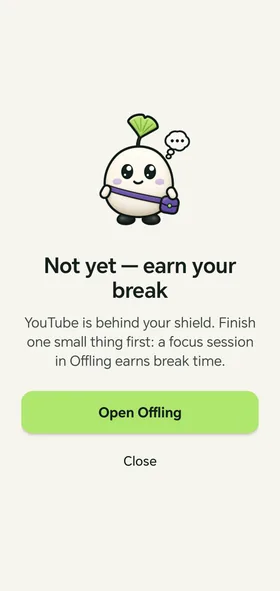
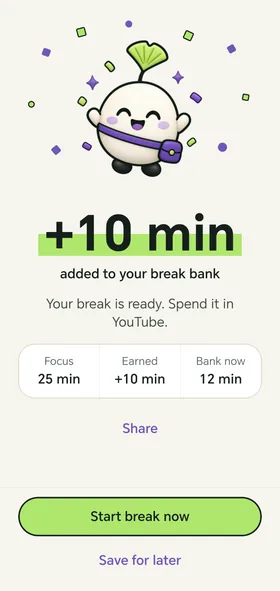
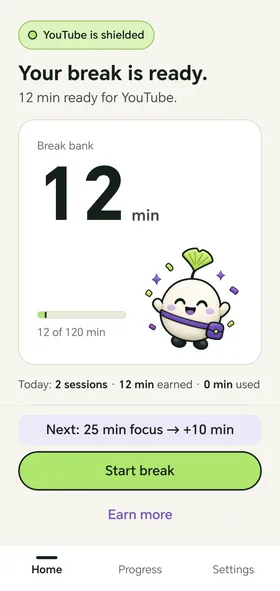
Real screens from the Android test build (HONOR X9b)
Focus
25 min First time: 5 min
Earn
+10 min
Spend it in your app
Shield returns at 0
How it works
You pick the one app that eats your time and Offling shields it. Then the loop is three steps.
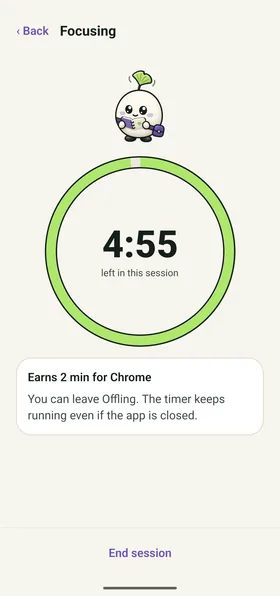
Focus
Start a focus session: 25 minutes on the default rule, 5 minutes the first time. Put your phone down. You can leave Offling; the timer keeps running.
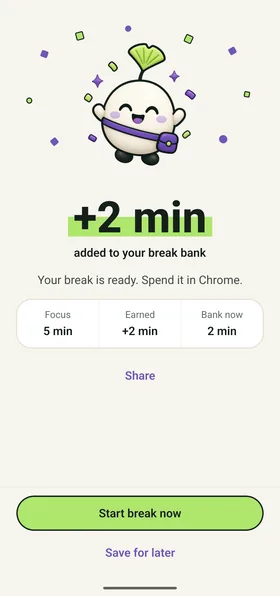
Earn
Finish the timer and the minutes land in your break bank: +10 for 25 minutes, +2 for the 5-minute starter (once). Cancel early and nothing is added.
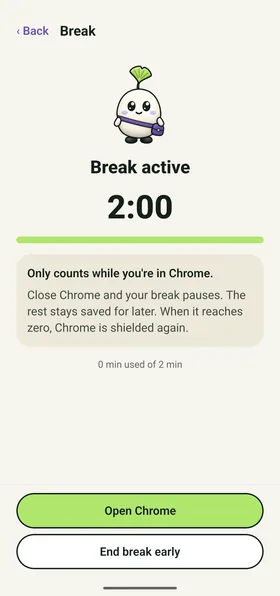
Spend it
Start a break, then open your shielded app. Minutes count down only while you're in it. Close it and the clock waits.
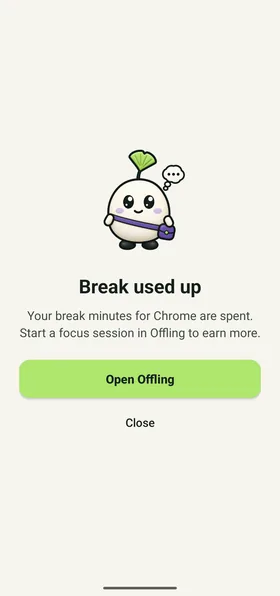
The shield returns
When the minutes are used up, the shield covers the app again. A new focus session earns more.
Screens from the Android test build on an Android 16 emulator, with Chrome as the shielded app.
See it run
Real recordings: release build on an Android 16 emulator (Chrome as the shielded app) and a short HONOR X9b clip. The 5-minute timer is shortened in the edit, and that is labelled. Narration is an AI voice.
The rules
The same few rules every time. Your Offling cheers you on when you finish.

Break time only counts while the shielded app is open.
Leave it and the clock waits. Open it again and it carries on.
At 0, the shield returns.
When your break is used up, the shield covers the app again, even if Offling is closed.
Turning restrictions off is always free.
Open Offling, go to Settings and turn restrictions off. The shield stops appearing.
The timer counts time. It can't see what you do.
A finished session shows that the time passed, not what you did with it.
Cancel and you earn nothing. Each session counts once.
Finish the timer to earn the minutes. The same session can't be claimed twice.
End a break early and the unused minutes come back.
They go back into your break bank.
The bank holds up to 120 minutes.
Earned minutes stay in it until you spend them.
No Accessibility service on Android.
Offling uses Usage access to know which app is in front and Display over other apps to show the shield. Nothing more.
What Offling can't do
Offling works within what the phone's system allows. These are the limits we know about today.
It can't survive Force stop.
Android's Force stop halts every part of an app, including Offling's guard, until you open Offling again. That is an Android rule.
Honor and Huawei phones need one setting.
With the default App launch setting (Manage automatically), Offling can't restart itself after an update, and probably after a restart, until you open it. Set it to Manage manually; Offling's Settings has a shortcut. On our HONOR X9b, Offling then restarted within 3 seconds.
It can't cover picture-in-picture windows.
No app can draw over a picture-in-picture window. Offling pauses the sound instead, but it can't close the window. That would need an Accessibility service, which Offling doesn't use.
You may see the app for a split second.
On our HONOR X9b a shielded app is visible for about 0.2 to 0.4 seconds before the shield covers it. On the emulator it can be up to about a second.
Music can pause when a break runs out.
When a break runs out, Offling takes audio focus so the shielded app stops playing. Android doesn't tell apps which app is playing, so music from another app pauses at that moment too; tap play to resume it. While no break is running, Offling never touches other audio.
Android 7 to 9 are more limited.
On these versions a picture-in-picture or unfocused split-screen window does not count against your break.
The iPhone app isn't ready.
It is in development and uses Apple's Screen Time. So far it has been built and tested in a simulator only, not on a real iPhone.
It's a self-control aid, not a lock.
Offling is not a security or parental-control tool. You can turn it off whenever you like, and revoked permissions or a system update can stop the shield.
Tested so far on Android 9, 14 and 16 emulators and on one physical phone, an HONOR X9b running Android 15. Other phones may behave differently. See Support for the settings that matter.
Free and Premium
Turning restrictions off is always free. Premium is planned and not on sale yet.
Free
- Shield one app
- The default rule: 25 minutes of focus earns 10 minutes of break
- A first session of 5 minutes for 2, once
- Your break bank and 7-day progress
- Turning restrictions off, always free
Premium Planned
- Shield several apps
- The Short rule (15 min focus, 5 min break) and the Deep rule (50 min focus, 20 min break)
- Full history
Not on sale. The price is set at launch and shown in the store before you buy. You never need Premium to turn restrictions off.
Privacy, in short
Offling is operated by XPIT L.L.C., a Wyoming limited liability company.
- No Offling account. Offling never asks for your name, email or phone number.
- The apps you choose and your focus and break history stay on your phone.
- Offling sends a few simple usage events (for example "focus started" or "break started") to PostHog servers in the EU, with a random install ID, the app version and your phone's system. Never which apps you chose, never what you do inside apps.
- Purchases, when available, are handled by Apple or Google, with RevenueCat confirming whether Premium is active.
- On Android, usage access is used only to know which app is in front.
- On Android, Offling asks Google Play which campaign link led to the install (at most three tries). It keeps the campaign tags only; everything else in the link is discarded on your phone.
Questions
Can I just turn it off?
Yes, any time, and it's always free. Open Offling, go to Settings and turn restrictions off. The shield stops appearing. Offling is a self-control aid, so the choice stays with you.
Will it lock me out of my phone?
No. Offling only shields the app you pick. Everything else works as usual, and you can turn restrictions off at any time.
Does it read my screen or my messages?
No. To show the shield and count break time, Offling only checks which app is in front, and that check happens on your phone. It does not read your messages, your browsing or what you do inside apps.
Which phones does it work on?
Android 7.0 or newer. So far we have tested it on Android 9, 14 and 16 emulators and on one physical phone, an HONOR X9b running Android 15. Other phones, especially ones with strict battery rules, may need a setting changed (see Support). There is no iPhone version yet.
Why does Android ask for Usage access and Display over other apps?
Usage access lets Offling see which app is in front, so it knows when to show the shield and when to count break time. Display over other apps lets it draw the shield on top of that app. Offling does not use an Accessibility service. If a permission is missing, the app tells you and helps you fix it.
Is it free?
Turning restrictions off is always free. The free version shields one app with the default rule (25 minutes of focus earns 10 minutes of break) and shows your 7-day progress. Premium is planned (several apps, the Short and Deep rules, full history) but is not on sale, and its price will be set at launch.
When can I get it?
Offling is not on Google Play or the App Store yet. The Android app is in testing and we don't have a launch date. Email us and we'll let you know when it's available.
Does it work with YouTube, Instagram or TikTok?
You choose the app. Offling works from which app is in front, so it isn't tied to a fixed list. We have verified it with YouTube and Chrome; we haven't tested other apps one by one yet.
What about iPhone?
An iPhone version is in development, built on Apple's Screen Time. It isn't ready: so far it has only been built and tested in a simulator, not on a real iPhone. We'll say so here when that changes.
Can the shield be bypassed?
Offling works within what Android allows, so there are limits. Force stop, some manufacturer battery settings, picture-in-picture windows and revoked permissions can all get around it. We list them under What Offling can't do. And you can always just turn it off.
Hear when Offling launches.
Offling is not on Google Play or the App Store yet. Email us and we'll let you know when the Android app is available.
Email us to hear at launch